
Confinement is forcing universities and their faculties to renew themselves. Courses are now dematerialized, and exams will soon be too. While we are currently carrying out a number of load tests to ensure that all our students benefit from optimal conditions for taking their exams, you will find below a few tips for improving the quality of your connection, as well as a reminder of the procedure to follow for your future online exams.

Test and interpret your flow

In order to enable students to take their exams online and staff to work in the best possible conditions, DSIN is providing you with a tool to measure the quality of the connection between your home and the university: https://testdebit.umontpellier.fr/

Data reception (download)

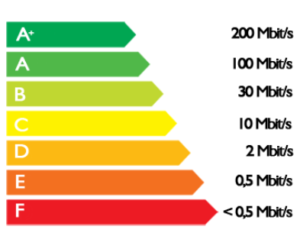
Following this test, results will appear, which you can interpret with the help of this short guide:

  • A speed between D and F is considered slow (low flow);
  • A C-rated speed of between 3 and 7 Mb/s is referred to as "medium throughput", and it's at these speeds that remote working can begin under the right conditions.
  • A value of 8 Mb/s or more corresponds to the threshold of a "high-speed" connection.
  • Above 30 Mb/s, the connection is qualified as "very high speed".

Sending data (Upload)

This value represents the speed at which data is transmitted from your computer to the Internet; it is often referred to as the "upload rate".

An average data rate of 1.2 Mb/s is sufficient to transmit data from your workstation.

Response time (ping) 

This value represents the round-trip time between your computer and the one hosting the files used to measure the data reception rate, and is often referred to as "latency".

A value in the green zone is required for seamless videoconferencing.

Improve your Wifi network connection

If the connection is not optimal (between D and F), :

  • Prefer wired if possible The flow will be more stable, and wi-fi-connected equipment will have a better throughput.
  • Position your box correctly Avoid placing it under the TV set or in a closed cupboard. Install it preferably about 1.50m from the floor in an open area. Never place anything on top of it, and plug it in directly (don't use an extension cord or power strip).
  • Stop running programs: To get the most out of your bandwidth, remember to turn off the wi-fi on devices you're not using (phones, connected objects).
  • Disable automatic wifi search By default, Windows constantly searches for nearby wireless networks. This function is useless when you're always connecting to your own network, and consumes bandwidth.
  • Check for viruses: Whether by displaying advertisements or discreetly using the computer's capabilities, some malware uses bandwidth unnecessarily.


If, after checking all these steps, your connection is still weak, please contact your Registrar's Office so that they can help you access the exams in the best possible conditions. Don't hesitate to inform them of any problems you encounter during the tests.

Passing your exams

With an optimal connection, students can take their exams.

To do this, students must log in in the same way as for tablet exams in the lecture hall: connect from your computer to SIDES + ENT identification + call up a test code.

Box codes will be communicated by email before the event.

On the day of the test, we invite students to position themselves, if possible, in an exam situation:

  • Start the connection at least 15 minutes before the specified times (to avoid unforeseen events).
  • Staying alone in a room
  • Keep only examination materials (pen, blank draft sheet, etc.).
  • Do not attempt to connect to applications other than those required for the test. This could disrupt the connection and distort dialing capability.

Once the test is underway, it's up to you! 

We wish you all the best for your exams!

Bonus

In this article, you'll also find our tips for long-distance revision!

MOOC Maieutics

The training of our students is of paramount importance to the Faculty, which is why we're putting three teaching platforms at your disposal that are of particular interest to students in the Maïeutics stream, but which may also be of interest to students in the Medicine stream.

Formagyn

This platform offers the educational content of the University of Brest's "gynecological follow-up for prevention, sexuality and birth control" DU program, and is free for all students from March 17 to June 17. The rich, well-developed content focuses on gynecological follow-up and emergencies, contraception and much more.

Digital Health Pedagogy

This platform brings together several MOOCs (Massive Open Online Courses): online training courses open to all, generally consisting of explanatory videos and knowledge MCQs. Pédagogie Numérique en Santé deals with women's and children's health, including topics such as violence against women and children, breastfeeding, contraception, menopause, etc...

Dealing with violence

The first, on victimology, was developed in collaboration with Gynécologie sans frontière. The second MOOC on the platform deals with male domination.

For some, this training package will be a direct complement to their courses, while others will benefit from additional information that will be useful in their future professions.


We would like to thank Romain PONS, a maieutics student elected to the Pedagogical Council, for his help in writing this article.


As part of the crisis management of the coronavirus epidemic, the FMC (Continuing Medical Education) department is once again offering a themed videoconference evening for doctors in charge of COVID platforms for the elderly in the Eastern Occitanie region. Once again, Pr Blain will lead the evening. Find out more in this article.


A remote conference

The conference will take place by videoconference on Tuesday April 28 from 6pm to 8pm. It is open to all established general practitioners, and in particular to doctors in charge of COVID platforms for the elderly in the Occitanie Est region. The theme of the evening will be: "Sharing best practices with doctors in charge of COVID platforms for the elderly in Occitanie-Est". As the number of participants is limited in order to encourage interaction between listeners and speakers, registration is free but compulsory.

Registration is now closed.

Watch the replay of the conference below!


The evening's program

The online evening will be hosted by Pr Blain (Pôle Gérontologie, CHU de Montpellier). The event is organized in conjunction with ARS Occitanie.
The evening will focus on best practices with the doctors in charge of the COVID platforms for the elderly in the Occitanie-Est region.
Detailed program to follow.


You can follow the conference on video.umontpellier.fr

Can't make either of the evening's events? Don't worry, you can watch the replay the very next day on video.umontpellier.fr.

Nutrition - 5 tips

In this period of confinement, there's no shortage of temptations when it comes to snacks and treats... Cracking down with guilt or resisting with frustration? We interviewed Professor Ariane Sultan, a professor at the Faculty specializing in nutrition, and dietician Nicolas Sahuc, a lecturer at the Faculty. With them, we have compiled 5 dietary and nutritional tips to apply during confinement... but not only!


1 / Listen to your body and its needs!

Confinement upsets our habits: our schedules are out of sync... and so is our body! Sometimes, the feeling of hunger doesn't come at the time of the traditional trio "breakfast, lunch, dinner". But don't panic! According to Nicolas Sahuc, you need to pay close attention to your body's rhythm, which varies on a daily basis and doesn't necessarily follow the "social" timetable: "You shouldn't be worried about your body feeling hungry.Don't worry about not feeling hungry at "meal times", and eat when you really really hungry". To do this, you need to listen to your body, to the real sensations of hunger and satiety. "Which doesn't necessarily mean eating 3 meals a day..." supports Professor Sultan.

All in all: think biological rhythm and listen to your hunger even before thinking about nutrition! 


2 / Don't select or rule out any food: think satiation time! 

"At the moment of hunger, all foods are good for satiating you. However, not all foods cover the same duration of satiety.". The dietician's advice is to choose foods that will satisfy you over the long term: choose a banana over a cookie for your snack, or better still, if you're really hungry, eat a real balanced meal.


3 / Don't feel guilty - think global!

But don't feel guilty either if you really want that cookie for a snack. The key is to think about nutrition holistically: "Nutrition is all about overall balance. If you eat balanced meals regularly and at your own pace, there's no reason to feel self-conscious.." On the other hand, balanced nutrition is not a one-shot deal: a single balanced meal from time to time is not enough! Professor Sultan confirms: "A balanced diet takes shape over the course of a week rather than a single day."


4 / Choose balanced meals

"A balanced meal will fill you up for around 5 hours, whereas an unbalanced meal or snack will only fill you up for 2 to 2.5 hours."It' s therefore important to compose your meals with a range of foods that will satisfy your hunger over time. "Contrary to popular belief, a meal without bread or starchy foods won't help you keep your figure, since you'll be hungry again 2 hours later." For a balanced, hearty meal, we recommend a combination of: bread, starchy foods, a source of protein (meat, fish, egg or vegetable protein), a dairy product (yoghurt or cheese), fruit and vegetables for fiber, and a little fat. Ariane Sultan reminds us that "this composition must be adapted to the degree of hunger".. As for meal variations, the dietician stresses that "the composition of a balanced meal is always the same, you just have to vary the foods to suit your tastes!"


An example of a balanced meal: 

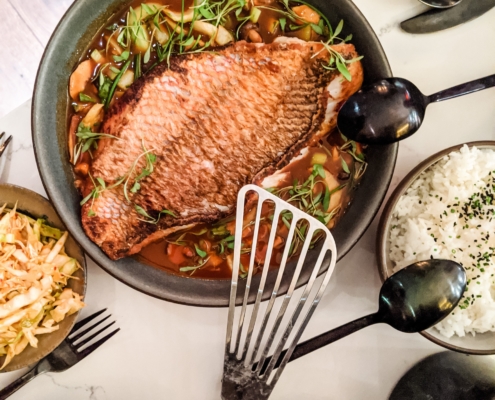
  • 1 portion of Poulet Basquaise, with vegetables (fresh or frozen), rice and salad
  • 1 piece of bread
  • 1 yoghurt or 1 piece of cheese
  • A few strawberries


But don't forget Professor Sultan's advice on gauging hunger: "If the sensation of hunger is only slightly present, there's no need for all those starches, or reduce their quantity!"

5 / Carbohydrate-rich snacks for intense work periods

And because we know that for many people, exams are just around the corner, we asked the dietician for his recommendations when it comes to snacking during periods of intense work. According to him, "We recommend carbohydrate-rich foods such as cereal bars and compotes, which are both well-balanced and convenient. Havreflarn-style Swedish pancakes are also a good alternative: they don't have too many added sugars and are easy to cook yourself." Nevertheless, our dietician reminds us: "Before you even think about snacks, the most important thing is to know how to manage your stress! Breathing exercises are very effective in helping you." "And don't forget physical activity!" adds the professor, "Physical activity is feasible in any condition, including confined spaces! It just needs to be adapted and adapted to!"


Of course, we couldn't leave you in the lurch: we've selected a few Swedish galette recipes for you... : 

Recipe 1 Recipe 2 Recipe 3

...and applications to help you manage stress:


We'll be back to you in the next few days on the physical activity front, so stay tuned! And in the meantime: get cooking 😉 !


Healthcare Professionals:

We would like to thank them for their help in writing this article.

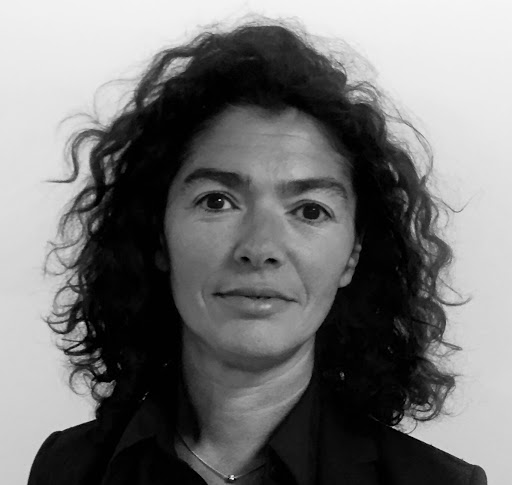
Ariane Sultan

Ariane Sultan

Professor of Nutrition

Ariane Sultan is a professor of nutrition in the nutrition-diabetes team at Montpellier University Hospital, Hôpital Lapeyronie. Chairwoman of the CLAN (Comité Liaison Alimentation Nutrition) at Montpellier University Hospital, she also lectures on nutrition and diabetology at the Faculty of Medicine.

Nicolas Sahuc

Nicolas Sahuc

Dietician

Nicolas Sahuc qualified as a dietician in 2003, specializing in eating disorders. He regularly gives seminars on eating disorders and childhood obesity to medical interns at our Faculty.

As part of the crisis management of the coronavirus epidemic, the FMC (Continuing Medical Education) department is once again offering a themed videoconference evening for general practitioners and EHPAD coordinating physicians. This time, Pr Hubert Blain and Dr Emilie Million will be speaking. Find out more in this article.


A remote conference

The conference will take place by videoconference on Thursday April 16 from 6pm to 8pm. A 2nd edition of the same evening will be held on April 21, 2020, from 6pm to 8pm. It is open to all general practitioners and EHPAD coordinators in the Occitanie region. The theme of the evening will be: "COVID-19 prevention in EHPAD: how best to apply the ARS Occitanie recommendations of April 6, 2020 in practice". As the number of participants is limited in order to encourage interaction between listeners and speakers, registration is free but compulsory.

Registration closed

The evening's program

The online evening will be hosted by Pr Blain (Pôle Gérontologie, CHU de Montpellier) and Dr Emilie Million (Département Universitaire de Médecine Générale de la Faculté).
The evening will focus on ARS Occitanie's recommendations for preventing COVID-19 cases in the Region's EHPADs.
Detailed program to follow.


You can follow the conference on video.umontpellier.fr

Can't make either of the evening's events? Don't worry, you can watch the replay below!


Evening of 16/04

04/21 evening


Library item

A platform for broadcasting scientific videos focusing on health and biology is available to students on an unlimited basis until April 30.

A video platform for research and teaching

JoVE is a publisher of scientific articles in video format. Articles are peer-reviewed, i.e. checked and validated by scientists before distribution. They are indexed on PubMed and Medline, presenting experiments and protocols filmed in the world's most prestigious universities and research laboratories.

To discover the videos

Simply log on to the University's ENT => Click on the "Libraries" tile => Enter "JOVE" in the search engine

Your user experience will enable us to assess the relevance of this documentary resource for the University. Please let us know what you think by writing to scd-docelec@umontpellier.fr